Author: Becky Price

  • Help With Ordering Your Test Center Tests

    [et_pb_section fb_built=”1″ _builder_version=”4.16″ global_colors_info=”{}”][et_pb_row _builder_version=”4.16″ background_size=”initial” background_position=”top_left” background_repeat=”repeat” global_colors_info=”{}”][et_pb_column type=”4_4″ _builder_version=”4.16″ custom_padding=”|||” global_colors_info=”{}” custom_padding__hover=”|||”][et_pb_text admin_label=”Text” _builder_version=”4.24.2″ _module_preset=”default” text_text_color=”#284679″ header_text_color=”#298500″ global_colors_info=”{}”]

    Test Center Ordering Instructions


    Read through these steps so you will know how to order your Test Center test through the Christian Home Educators of WV (CHEWV) Parent Portal at BJU Press.

    [/et_pb_text][et_pb_text admin_label=”Text” _builder_version=”4.24.2″ _module_preset=”default” text_text_color=”#284679″ header_text_color=”#298500″ global_colors_info=”{}”]

    • When you click the green Parent Portal link at the bottom of this page, you will see that your cart has already been filled with every grade level test. Carefully delete the ones you don’t need.

    • Click “Checkout.”

    [/et_pb_text][et_pb_image src=”https://new.chewv.org/wp-content/uploads/2024/02/paper.png” title_text=”paper” _builder_version=”4.24.2″ _module_preset=”default” border_width_all=”2px” border_color_all=”#000000″ global_colors_info=”{}”][/et_pb_image][et_pb_text _builder_version=”4.24.2″ _module_preset=”default” text_text_color=”#284679″ global_colors_info=”{}”]

    • Check your shipping address and edit as needed.

    • Read and agree to the User Agreement. Check the box at the bottom and click “Save.”

    • Enter the student information for each test, beginning with the one that is highlighted (see example in screenshot below). Click the green check-mark.

    • Repeat previous step for each remaining test by clicking on each test to select it, and then enter student information and click the green check-mark.

    [/et_pb_text][et_pb_image src=”https://new.chewv.org/wp-content/uploads/2024/02/stud.png” title_text=”stud” _builder_version=”4.24.2″ _module_preset=”default” border_width_all=”2px” border_color_all=”#000000″ global_colors_info=”{}”][/et_pb_image][et_pb_text _builder_version=”4.24.2″ _module_preset=”default” text_text_color=”#298500″ link_text_color=”#298500″ global_colors_info=”{}”]

    • Fill in the administrator information by entering the test center coordinator’s account number or email address (see website for this information) and click the appropriate button to search (see screenshot below).

    • Once the administrator’s name appears in the grey box, click on it to select.

    • Enter the date for your test center (see website for this information). Click “Save and Continue.”

    • Select “Free Shipping,” even if it is close to your date. BJU Press assures us it will arrive in time.

    • Enter payment information.

    [/et_pb_text][et_pb_image src=”https://new.chewv.org/wp-content/uploads/2024/02/test-center-admin.png” title_text=”test center admin” _builder_version=”4.24.2″ _module_preset=”default” border_width_all=”2px” border_color_all=”#000000″ global_colors_info=”{}”][/et_pb_image][et_pb_text _builder_version=”4.24.2″ _module_preset=”default” text_text_color=”#298500″ header_text_color=”#298500″ link_option_url=”Portal.bjupress.com?cart=5637425290:1,5637425292:1,5637425294:1,5637425296:1,5637425299:1,5637425301:1,5637425303:1,5637425305:1,5637425307:1,5637425309:1,5637425312:1,5637425314:1&organiza#on=12729&umbrella=12729″ link_option_url_new_window=”on” hover_enabled=”0″ global_colors_info=”{}” sticky_enabled=”0″]

    Click here to return to the CHEWV Test Center page to complete the steps to order your tests.


    [/et_pb_text][/et_pb_column][/et_pb_row][/et_pb_section]
  • Help With Ordering Your Private Tests

    [et_pb_section fb_built=”1″ _builder_version=”4.16″ global_colors_info=”{}”][et_pb_row _builder_version=”4.16″ background_size=”initial” background_position=”top_left” background_repeat=”repeat” global_colors_info=”{}”][et_pb_column type=”4_4″ _builder_version=”4.16″ custom_padding=”|||” global_colors_info=”{}” custom_padding__hover=”|||”][et_pb_text admin_label=”Text” _builder_version=”4.24.2″ _module_preset=”default” text_text_color=”#284679″ header_text_color=”#298500″ global_colors_info=”{}”]

    Private Test Ordering Instructions


    Read through these steps so you will know how to order your Private (paper) test through the Christian Home Educators of WV (CHEWV) Parent Portal at BJU Press.

    [/et_pb_text][et_pb_text admin_label=”Text” _builder_version=”4.24.2″ _module_preset=”default” text_text_color=”#284679″ header_text_color=”#298500″ global_colors_info=”{}”]

    • When you click the green Parent Portal link below, you will see that your cart has already been filled with every grade level test. Carefully delete the ones you don’t need (see first screenshot below).

    **Please note that you will need a Student Kit for each child and a Test Administrator Kit for each level of test you are ordering (see second screenshot below).**

    [/et_pb_text][et_pb_image src=”https://new.chewv.org/wp-content/uploads/2024/02/paper.png” title_text=”paper” _builder_version=”4.24.2″ _module_preset=”default” border_width_all=”2px” border_color_all=”#000000″ global_colors_info=”{}”][/et_pb_image][et_pb_image src=”https://new.chewv.org/wp-content/uploads/2024/02/privatepaper.png” title_text=”privatepaper” _builder_version=”4.24.2″ _module_preset=”default” border_width_all=”2px” border_color_all=”#000000″ global_colors_info=”{}”][/et_pb_image][et_pb_text _builder_version=”4.24.2″ _module_preset=”default” text_text_color=”#284679″ global_colors_info=”{}”]

    • Click “Checkout.”

    • Check your shipping address and edit as needed.

    • Read and agree to the User Agreement. Check the box at the bottom and click “Save.”

    • Enter the student information for each test, beginning with the one that is highlighted (see example in screenshot below).

    • Repeat previous step for each remaining test by clicking on each test to select it, and then enter student information.

    [/et_pb_text][et_pb_image src=”https://new.chewv.org/wp-content/uploads/2024/02/stud.png” title_text=”stud” _builder_version=”4.24.2″ _module_preset=”default” border_width_all=”2px” border_color_all=”#000000″ global_colors_info=”{}”][/et_pb_image][et_pb_text _builder_version=”4.24.2″ _module_preset=”default” text_text_color=”#298500″ link_text_color=”#298500″ global_colors_info=”{}”]

    • Fill in the administrator information by clicking “Me” if you are administering the test, or your chosen administrator’s account number or email address and click the appropriate button to search (see screenshot below).

    • Once the name appears in the grey box, click on it to select.

    • Enter the date you plan to test. This must be within the CHEWV testing window — between March 4 and April 5, 2024. Click “Save and Continue.”

    • Select “Free Shipping,” even if it is close to your date. BJU Press assures us it will arrive in time.

    • Enter payment information.

    [/et_pb_text][et_pb_image src=”https://new.chewv.org/wp-content/uploads/2024/02/administrator.png” title_text=”administrator” _builder_version=”4.24.2″ _module_preset=”default” border_width_all=”2px” border_color_all=”#000000″ global_colors_info=”{}”][/et_pb_image][et_pb_text _builder_version=”4.24.2″ _module_preset=”default” text_text_color=”#298500″ header_text_color=”#298500″ link_option_url=”Portal.bjupress.com?cart=5637425383:1,5637425384:1,5637425385:1,5637425359:1,5637425360:1,5637425361:1,5637425362:1,5637425363:1,5637425364:1,5637425365:1,5637425366:1,5637425367:1,5637425438:1&organiza#on=12729&umbrella=12729″ global_colors_info=”{}”]

    Click here to go to the CHEWV Parent Portal to order your Private paper tests.


    [/et_pb_text][/et_pb_column][/et_pb_row][/et_pb_section]

  • Help With Ordering Your Online Tests

    [et_pb_section fb_built=”1″ _builder_version=”4.16″ global_colors_info=”{}”][et_pb_row _builder_version=”4.16″ background_size=”initial” background_position=”top_left” background_repeat=”repeat” global_colors_info=”{}”][et_pb_column type=”4_4″ _builder_version=”4.16″ custom_padding=”|||” global_colors_info=”{}” custom_padding__hover=”|||”][et_pb_text admin_label=”Text” _builder_version=”4.24.2″ _module_preset=”default” text_text_color=”#284679″ header_text_color=”#298500″ global_colors_info=”{}”]

    Online Test Ordering Instructions


    Read through these steps so you will know how to order your Online test through the Christian Home Educators of WV (CHEWV) Parent Portal at BJU Press.

    [/et_pb_text][et_pb_text admin_label=”Text” _builder_version=”4.24.2″ _module_preset=”default” text_text_color=”#284679″ header_text_color=”#298500″ global_colors_info=”{}”]

    • When you click the green Parent Portal link below, you will see that your cart has already been filled with every grade level test. Carefully delete the ones you don’t need. Click “Checkout.”

    [/et_pb_text][et_pb_image src=”https://new.chewv.org/wp-content/uploads/2024/02/online-screenshot-1.jpg” title_text=”online screenshot 1″ _builder_version=”4.24.2″ _module_preset=”default” border_width_all=”2px” border_color_all=”#000000″ global_colors_info=”{}”][/et_pb_image][et_pb_text _builder_version=”4.24.2″ _module_preset=”default” text_text_color=”#284679″ global_colors_info=”{}”]

    • Check your shipping address and edit as needed.

    • Read and agree to the User Agreement. NOTE: If you haven’t done the System Check on the device you will use for testing, you can find it in the User Agreement. Check the box at the bottom and click “Save and Continue.”

    • Enter the student information for each test, beginning with the one that is highlighted (see example in screenshot below).

    • Repeat previous step for each remaining test by clicking on each test to select it, and then enter student information.

    [/et_pb_text][et_pb_image src=”https://new.chewv.org/wp-content/uploads/2024/02/stud.png” title_text=”stud” _builder_version=”4.24.2″ _module_preset=”default” global_colors_info=”{}”][/et_pb_image][et_pb_text _builder_version=”4.24.2″ _module_preset=”default” text_text_color=”#284679″ global_colors_info=”{}”]

    • Fill in the proctor information. Choose the EST time zone. Click “Save.”

    • Choose a test date and time from the available slots. Click “Save and Continue.”

    • Enter payment information.

    [/et_pb_text][et_pb_text _builder_version=”4.24.2″ _module_preset=”default” text_text_color=”#298500″ header_text_color=”#298500″ link_option_url=”Portal.bjupress.com?cart=5637425383:1,5637425384:1,5637425385:1,5637425359:1,5637425360:1,5637425361:1,5637425362:1,5637425363:1,5637425364:1,5637425365:1,5637425366:1,5637425367:1,5637425438:1&organiza#on=12729&umbrella=12729″ global_colors_info=”{}”]

    Click here to go to the CHEWV Parent Portal to order your Online tests.


    [/et_pb_text][/et_pb_column][/et_pb_row][/et_pb_section]

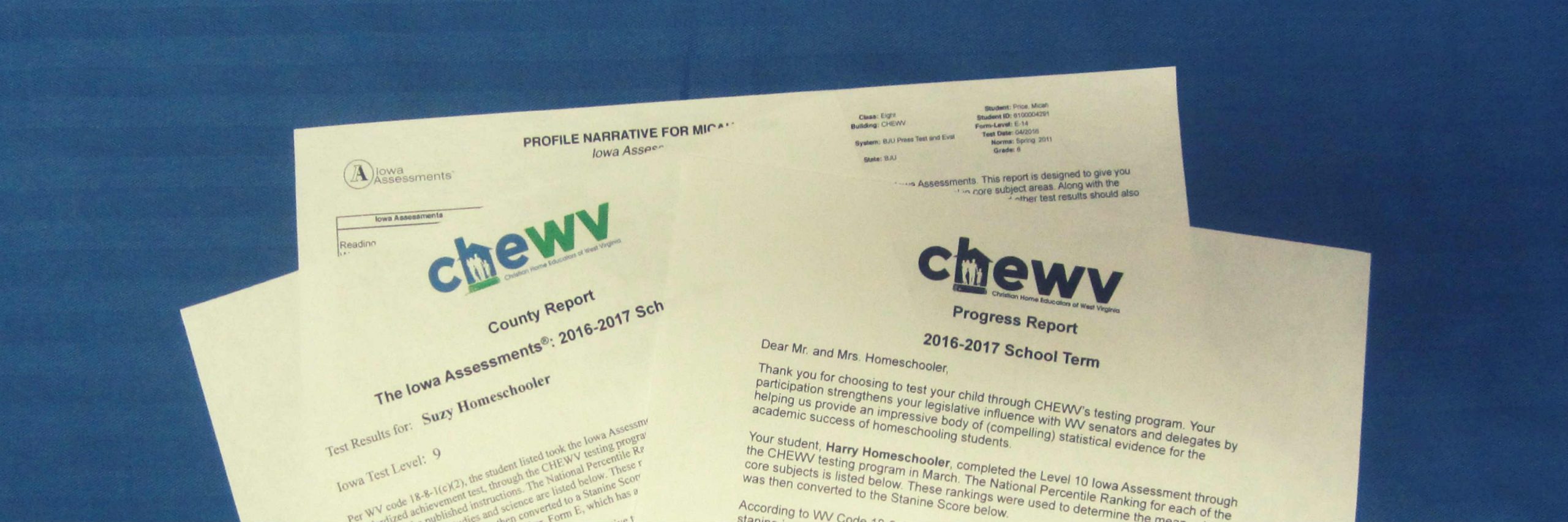
  • Choosing the County Report or the Progress Report

    Choosing the County Report or the Progress Report

    [et_pb_section fb_built=”1″ admin_label=”section” _builder_version=”4.16″ global_colors_info=”{}”][et_pb_row admin_label=”row” _builder_version=”4.16″ background_size=”initial” background_position=”top_left” background_repeat=”repeat” global_colors_info=”{}”][et_pb_column type=”4_4″ _builder_version=”4.16″ custom_padding=”|||” global_colors_info=”{}” custom_padding__hover=”|||”][et_pb_text admin_label=”Text” _builder_version=”4.27.4″ background_size=”initial” background_position=”top_left” background_repeat=”repeat” hover_enabled=”0″ global_colors_info=”{}” sticky_enabled=”0″]

    The homeschooling law requires that assessment results be submitted to the county by June 30 when students are in grades 3, 5, 8 and 11. For those students, our County Report is appropriate.  Since ALL STUDENTS must still be assessed annually and must meet acceptable progress standards, our Progress Report is designed to help parents know if their student has met the requirements for “acceptable progress” in years when the results are not submitted to the county. 

    Both the County Report and the Progress Report are WV-specific.  Both reflect the necessary calculations to determine how the child’s test scores compare with WV law requirements. 

    The law requires that students annually make acceptable progress – as defined in the law.  If not, remediation is required.  The second consecutive year that acceptable progress is not made, additional evidence of appropriate instruction must be submitted to the county.  This is applicable for ALL STUDENTS IN ALL GRADES.

    At the time of testing registration, parents will be given the option of either choosing one of the two reports or choosing not to receive a CHEWV report at all. Reports will not automatically be sent — the parent must request it if they wish when they register for testing.

    In all cases, annual assessment results must be kept on file for three years.  Questions?  Email testing@chewv.org.

    [/et_pb_text][/et_pb_column][/et_pb_row][/et_pb_section]

  • Help With Ordering Your Tests

    [et_pb_section fb_built=”1″ _builder_version=”4.16″ global_colors_info=”{}”][et_pb_row _builder_version=”4.16″ background_size=”initial” background_position=”top_left” background_repeat=”repeat” global_colors_info=”{}”][et_pb_column type=”4_4″ _builder_version=”4.16″ custom_padding=”|||” global_colors_info=”{}” custom_padding__hover=”|||”][et_pb_text admin_label=”Text” _builder_version=”4.19.4″ _module_preset=”default” text_text_color=”#284679″ header_text_color=”#298500″ global_colors_info=”{}”]

    Let’s make this simple.


    Once you click the red link to the Christian Home Educators of WV (CHEWV) Parent Portal on the BJU Press website, follow these steps.


    First, for all tests:

    • Click on grade level.
    • In the yellow boxes, enter the quantity needed in the second box. ***WARNING: DO NOT CHOOSE THE OPTIONAL, MORE EXPENSIVE TEST WITH CogAT, MARKED WITH RED X’S BELOW.***  CHEWV does not use these.  See the red notes in the screenshots below.
    • Repeat for each child.

    [/et_pb_text][et_pb_image src=”https://new.chewv.org/wp-content/uploads/2022/01/tempsnip-2.png” title_text=”tempsnip 2″ _builder_version=”4.16″ _module_preset=”default” border_width_all=”2px” border_color_all=”#000000″ global_colors_info=”{}”][/et_pb_image][et_pb_image src=”https://new.chewv.org/wp-content/uploads/2022/01/tempsnip-3.png” title_text=”tempsnip 3″ _builder_version=”4.16″ _module_preset=”default” border_width_all=”2px” border_color_all=”#000000″ global_colors_info=”{}”][/et_pb_image][et_pb_text _builder_version=”4.16″ _module_preset=”default” text_text_color=”#284679″ global_colors_info=”{}”]

    • Click “Check Out.”
    • Choose Shipping and Billing address. NOTE: If address is not verified, simply click “Accept as Entered.”
    • Enter student info for each test.


    Next, for online tests (paper testers can skip to next section)…

    • Review remote proctor information and edit as necessary.
    • Choose date and time from the list. See red notes in the screenshot below.

    [/et_pb_text][et_pb_image src=”https://new.chewv.org/wp-content/uploads/2022/01/tempsnip4.png” title_text=”tempsnip4″ _builder_version=”4.16″ _module_preset=”default” border_width_all=”2px” border_color_all=”#000000″ global_colors_info=”{}”][/et_pb_image][et_pb_text _builder_version=”4.16″ _module_preset=”default” text_text_color=”#284679″ global_colors_info=”{}”]

    • Read and agree to the User Agreement. NOTE: If you haven’t done the System Check on the device you will use for testing, you can find it in the User Agreement.
    • Enter your payment information and you’re all done!

    [/et_pb_text][et_pb_text admin_label=”Text” _builder_version=”4.19.4″ text_text_color=”#284679″ header_text_color=”#284679″ background_size=”initial” background_position=”top_left” background_repeat=”repeat” hover_enabled=”0″ global_colors_info=”{}” sticky_enabled=”0″]


    Now for paper tests:

    • Enter Test Center Coordinator’s administrator number if testing at a center, or your chosen administrator’s number if testing privately. If you are approved and your name appears, you may choose that option. See red notes in the screenshot below.
    • Choose a date for testing between March 6 and April 7. Tests must be completed during this window. If you are testing at a test center, check with your Test Center Coordinator to determine the date.

    [/et_pb_text][et_pb_image src=”https://new.chewv.org/wp-content/uploads/2022/01/tempsnip.png” title_text=”tempsnip” _builder_version=”4.16″ _module_preset=”default” border_width_all=”2px” border_color_all=”#000000″ global_colors_info=”{}”][/et_pb_image][et_pb_text _builder_version=”4.16″ _module_preset=”default” text_text_color=”#284679″ global_colors_info=”{}”]

    • Read and agree to the User Agreement.
    • Be sure “Free Testing Shipping” is selected.
    • Enter payment information and you’re done!

    [/et_pb_text][/et_pb_column][/et_pb_row][/et_pb_section]